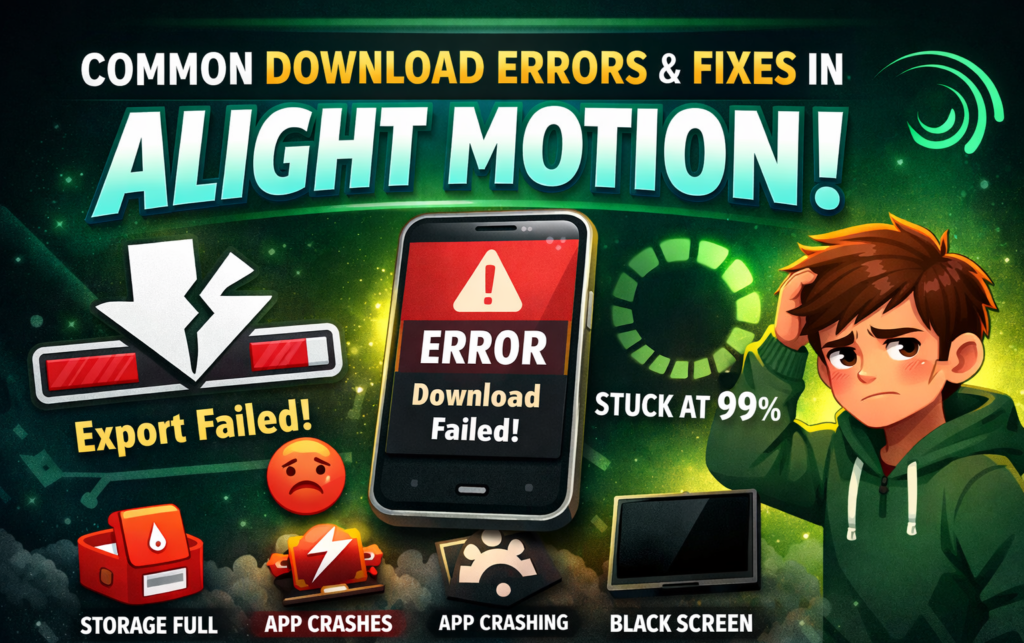
You’ve spent hours perfecting your animation. Transitions are smooth, keyframes are flawless, timing is perfect. You hit Export and suddenly Error. Export Failed. Download stuck. Your heart sinks.
This frustrating scenario happens thousands of times daily in the Alight Motion community. Export errors are among the most common issues creators face, especially those working on complex projects with tight deadlines. The good news? Nearly every error has a clear cause and a reliable fix.
Most export failures aren’t random bugs they’re predictable results of device limitations, project complexity, or resource constraints. Understanding these patterns lets you prevent errors before they occur. Whether experiencing your first export failure or troubleshooting a persistent issue, you’ll find practical solutions here.
1. The “Export Failed” Error: Most Common and Most Fixable
The “Export Failed” error represents the most frequently encountered problem in the Alight Motion community. When this error occurs, your project doesn’t export, leaving you with no video file and significant frustration.
Why This Happens
This error typically emerges from multiple factors overwhelming your device’s processing capacity. Your project might use too many layers when dozens of layers are stacked with effects, keyframes, and blending modes, your device must calculate interactions between all these elements simultaneously. This computational load can exceed what your processor can handle.
Heavy effects compound the problem significantly. Motion blur, glow, radial blur, and particle systems require substantial processing power by analyzing pixel values across multiple frames. When you combine multiple heavy effects across many layers, computational requirements multiply exponentially.
Your device’s available RAM represents another critical factor. A complex animation with 4K resolution, numerous high-resolution images, and multiple video layers might require 3-4GB of RAM just for project data, leaving insufficient memory for the export engine itself.
How to Fix It
Begin by reducing the number of layers in your project. Look for opportunities to merge related layers or consolidate static elements. Five adjustment layers performing similar color corrections should merge into a single layer. Multiple background elements that don’t animate independently should flatten together. This process can reduce layer count by 30-50% without sacrificing quality.
Next, identify and remove heavy effects that aren’t essential. Motion blur demands significant resources—try removing it temporarily and re-exporting. Glow effects, particle systems, and radial blur similarly consume substantial power. Replace heavy effects with lighter alternatives—swap motion blur with directional blur to reduce computational load.
Restart your entire device before attempting another export. This action clears RAM, resets system processes, and refreshes your file system. Many failed exports result from system-level constraints, not Alight Motion itself. After restarting, avoid opening other applications before exporting.
If your device still struggles, reduce export resolution. Try exporting at 1080p first. If this succeeds, you’ve confirmed the issue is device performance, not a corrupted project. Some creators maintain two project versions—full-resolution for final delivery and lower-resolution for testing.
Pro Tip: If your project exports successfully at 720p but fails at 1080p or higher, the problem is device performance. Optimize your project or upgrade your device—don’t reinstall the app or change settings.
2. Download Stuck at 0% or 99%: Connection Issues
When your download stalls at 99% completion or remains frozen at 0%, this indicates connection issues or temporary file corruption rather than complete export failure.
Why Downloads Get Stuck
An unstable internet connection represents the primary culprit. Even brief signal fluctuations interrupt export mid-transmission. Mobile data experiences more disruption than Wi-Fi, and VPNs sometimes introduce latency that destabilizes connections.
Background applications consuming bandwidth create invisible competition for connection resources. Streaming services, cloud backup, and auto-update systems compete for bandwidth while you’re exporting. Additionally, minimizing the app during export sometimes pauses or terminates the background process, leaving downloads incomplete.
How to Fix It
Use stable Wi-Fi rather than mobile data. Connect to reliable Wi-Fi and disable mobile data entirely during export to prevent connection type switching. Close all background applications swipe away everything except Alight Motion in your recent apps. Turn off VPNs and pause automatic updates.
Clear the app’s cache through Settings → Apps → Alight Motion → Storage, then tap “Clear Cache.” This removes temporary files without affecting your projects. Force stop the app and reopen it fresh.
Critical: Never minimize the app during export. Every switch away from Alight Motion interrupts the process. Set your device to remain awake and genuinely step away rather than continuing to use your phone.
3. “Not Enough Storage” Error: Storage Paradox
The paradox of seeing free space on your phone yet receiving a storage error frustrates many creators. Alight Motion requires substantially more temporary storage during export than your final video file requires.
Why This Happens
During export, Alight Motion loads your entire project into RAM and simultaneously writes temporary files to storage. Think of it like packing a suitcase you need more bed space than the suitcase itself to lay everything out before packing. Your device’s storage must accommodate free space equivalent to three to five times your final video file size.
Fragmented storage compounds this issue. What appears as 4GB available might scatter across dozens of small sections, making it useless for large exports.
How to Fix It
Free at least 3-4GB of additional storage before exporting. Delete previous exports in Alight Motion that you no longer need. Move photos, videos, and documents to cloud storage like Google Drive or Dropbox. After freeing space, restart your device to refresh the file system and ensure accurate available storage reporting.
For particularly large exports, split your project into multiple shorter segments, then combine them later.
4. App Crashes During Export: Prevention Strategies
Unlike errors providing feedback, crashes offer no explanation, making them particularly frustrating to troubleshoot.
Why Crashes Occur
An outdated app version is a common crash trigger each update includes stability improvements and bug fixes. Device overheating causes the processor to reduce performance, sometimes causing export failure. Long compositions or effect-heavy projects naturally tax your device more heavily, particularly on older devices with limited RAM.
How to Fix It
Update Alight Motion immediately if an update is available. Close all background applications before exporting the fewer competing processes, the more stable your export. Let your phone cool down before exporting, especially after intensive use.
For crash-prone projects, split them into 2-3 minute segments. Professionals frequently use this strategy for better control and creative flexibility while reducing processing demands on any single export.
5. Black Screen or Missing Elements: Post-Export Corruption
The most demoralizing scenario occurs when your export completes successfully but portions of your animation are missing or replaced with black screens.
Why Content Disappears
Unsupported fonts frequently cause this issue some third-party fonts don’t render properly during export, even though they appear correctly in preview. Third-party presets sometimes fail to load completely during export. Complex blending mode combinations might work in preview but fail during export, particularly with experimental blend modes.
How to Fix It
Replace custom fonts with system fonts like Arial or Roboto. If your animation suddenly appears complete, you’ve confirmed the font issue. Pre-render complex layers to simplify your project. Avoid experimental blend modes and stick to commonly used options like Multiply, Screen, and Overlay.
Most importantly, preview your entire project before exporting. Watch the complete timeline from beginning to end, catching missing content before export commits your time.
6. Watermark Appears Despite Premium Export
You export your video expecting clean output, but a watermark appears permanently burned in.
Why Watermarks Appear
Your account status during export determines whether watermarks appear. Loss of internet connection mid-export or exporting while your session expires sometimes causes watermarks despite active subscription. Being logged out of your account is a surprisingly common cause.
How to Fix It
Before every final export, verify you’re logged into the correct account and check that your subscription status appears “Active.” Restart the app after confirming your account status. Export a test clip perhaps just 10 seconds before committing to a full export to confirm watermarks won’t appear.
Prevention: Smart Exporting Strategy
Rather than only reacting to errors after they occur, establish preventive practices that dramatically reduce export failures. Before beginning any project, assess your device’s capabilities honestly. If using a device with less than 4GB RAM, avoid projects with dozens of layers and heavy effects. Plan projects to work within your device’s limitations.
Regularly update Alight Motion to access bug fixes and stability improvements. Maintain adequate free storage—keep at least 5GB free during project creation, expanding to 8-10GB for large-resolution exports.
Organize projects thoughtfully. Use separate project files for different segments of longer videos. Merge layers you’re no longer actively animating. Delete duplicate layers and unused assets. This organizational discipline keeps your project lightweight and responsive.
Final Thoughts: Master Your Exports
Export errors stop being mysterious obstacles once you understand their root causes. The six error categories covered here account for approximately 95% of all export failures in the Alight Motion community.
By understanding the causes and implementing appropriate solutions, you transform from a frustrated creator into a confident problem-solver. Create smart by understanding your device’s capabilities. Optimize projects by managing complexity. Export smarter by preparing your device, stabilizing your connection, and verifying account status before large exports.
Your next animation is waiting approach it with these troubleshooting fundamentals in mind, and you’ll export with confidence rather than anxiety. That’s the difference between professional creators and frustrated amateurs not raw talent, but the knowledge and discipline to successfully complete projects from creative vision to final export.
Never let a failed download ruin your work again. If you want to deepen your Alight Motion expertise further, explore our comprehensive guide on Alight Motion features and capabilities on our blog.