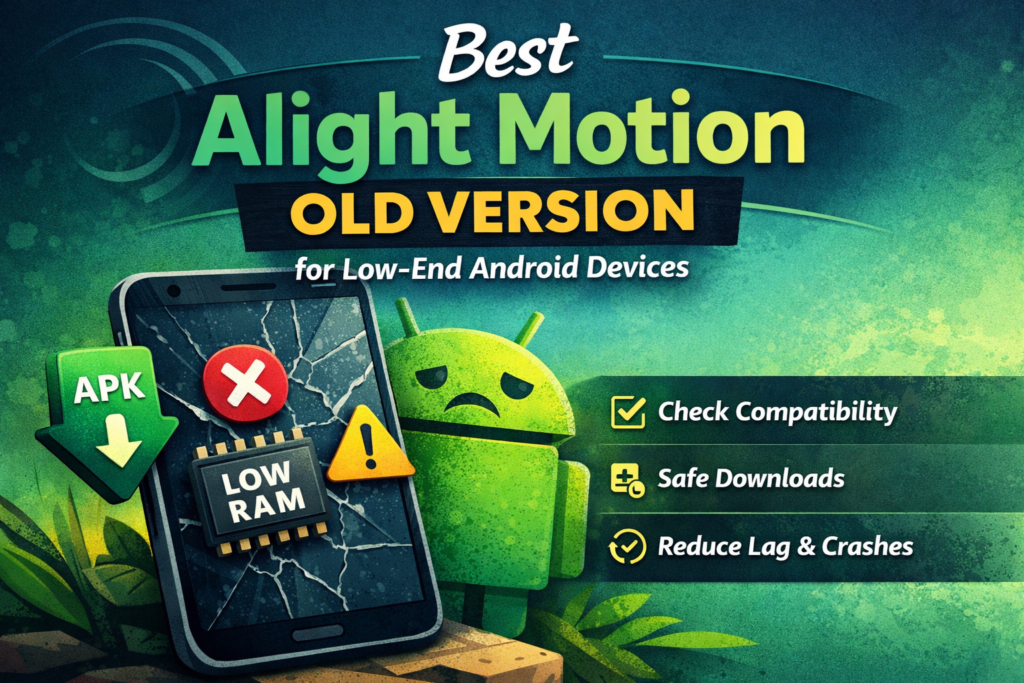
Alight Motion does not always run well on low-end or older Android phones. If it keeps crashing, lagging, failing during export, or does not appear in the Play Store, trying an older version can sometimes help. But the real solution is not downloading random APKs. It is understanding whether the issue is your Android version, low RAM, limited storage, or overall device performance.
If your phone meets the minimum requirements, an older build may improve stability. If it does not, changing versions may not help much. Before you uninstall or downgrade anything, back up your projects first so you do not lose important files.
Why People Search for an Alight Motion Old Version
Most users search for an older version because the latest one feels too heavy for their phone. Others do it because the app is not showing in the Play Store, crashes after installation, or becomes difficult to use during editing.
That is why this guide is useful. Instead of pushing dozens of version links, it helps you understand whether an older Alight Motion version is actually the right fix for your device.
Why people search for an Alight Motion old version
Most users are not looking for an old version because they love outdated apps. They are usually trying to fix a practical problem: the latest build feels too heavy, preview playback lags, exports fail, or the app is missing from Google Play. Alight Motion’s own support pages say that if the app does not appear on Google Play, it may be unsupported on your device or unavailable in your country. At the same time, public version archives such as Uptodown show that older builds do exist, which is why so many users start searching for downgrade options.
That is why a good blog post on this topic should do more than throw dozens of download buttons at the reader. It should help them answer the right questions first: Is my phone compatible? Am I running out of RAM? Is the issue storage, export settings, or a genuinely heavy update? Once those answers are clear, choosing the right path becomes much easier.
Check compatibility before you download anything
This is the first thing to verify, because it saves the most time. Alight Motion officially supports Android 6.0 and above. The minimum RAM listed by the company is 1.5 GB, but better performance starts at Android 7.0+ with more than 2 GB RAM. That means a phone can technically install the app and still struggle badly during editing or export.
If your phone is on Android 5.x or lower, an older version is not a reliable fix, because that Android level is outside official support. If your phone is on Android 6 with very limited RAM, the app may run, but you should expect compromises. If your phone is on Android 7 or newer with 3 GB RAM or more, you have a much better chance of getting stable results, whether you stay on the current version or test an older one. This guidance is an inference based on Alight Motion’s published minimum and recommended requirements.
Is your problem low RAM, old Android, or lack of storage?
A lot of people assume the issue is “the new version is bad,” but the real bottleneck is often device resources.
If the app does not show in Google Play, the issue is usually compatibility or regional availability, not editing performance. If the app opens but crashes, the company’s official troubleshooting says to update to the latest store version, install the latest Android version available for your device, reboot, make sure no other apps are running, and confirm Play Protect certification on Android.
If the app mainly struggles during export, the issue is often RAM or project complexity. Alight Motion’s export troubleshooting explains that some timeline sections may require more resources than the device has available, and their official fixes include exporting from the project list, lowering resolution, frame rate, or bitrate, and simplifying heavy layers.
That is why downgrading should be treated as one option, not the first answer to every problem. If the real issue is insufficient RAM or an overloaded project, simply changing versions may not fix much on its own.
Best Alight Motion old version strategy by device type
Alight Motion old version for Android 6 and 2 GB RAM phones
If your phone is running Android 6 and only just meets the minimum RAM requirement, your best chance is usually a lighter, older stable build rather than the newest version. Keep your expectations realistic. Use shorter timelines, fewer layers, and simpler effects. On this kind of phone, the goal is not “full smoothness.” The goal is “stable enough for basic edits.” This is a practical recommendation based on Alight Motion’s minimum requirement of Android 6.0 and 1.5 GB RAM, plus the app’s own RAM-related export guidance.
Alight Motion old version for Android 7 or 8 with 3 GB RAM
If your phone is on Android 7 or 8 and has around 3 GB RAM, you have more room to work with. In many cases, a moderately older version can be a good middle ground: lighter than the newest release, but still modern enough to feel usable. You may not need a very old build unless a specific update introduced lag or compatibility issues on your device. This is an inference from the official recommendation of Android 7.0+ and more than 2 GB RAM for better performance.
Older version strategy for Android 9+ low-end devices
If your phone is on Android 9 or newer but still feels weak, the issue may be less about Android version and more about processor limits, heat, free space, or project complexity. In that case, it often makes more sense to simplify your workflow first and only test an older build if the latest version clearly feels heavier than it should. Alight Motion’s official troubleshooting repeatedly points to resource pressure and project complexity as common causes of crashes and export trouble.
If your phone is below Android 6
If your phone is below Android 6, an older version is unlikely to be a dependable long-term solution because the device is below the official install requirements. In that situation, the more honest answer is that the hardware and OS are outside the app’s supported baseline.
How to download Alight Motion old version more safely
The official recommendation is straightforward: download Alight Motion from Google Play on Android or the Apple App Store on iPhone and iPad. Alight Motion also says it only provides support for authentic store versions and warns that unofficial copies may contain malware or harmful modifications that prevent the app from working correctly or cause loss or leakage of projects and data.
If you still decide to test an older build, be selective. Use reputable archives that keep version histories rather than random “premium unlocked” pages. Uptodown, for example, maintains a public version history for Alight Motion and presents those files as older builds for compatibility troubleshooting, but that still does not change Alight Motion’s own stance that official support is for authentic store versions.
So the safest practical rule is this: official store first, older archived build second, random modded APK last. If a page promises “no risk, no bugs, premium unlocked, no watermark” all at once, that is usually a warning sign, not a trust signal. Alight Motion’s own support language gives you good reason to be cautious about unofficial packages.
What to back up before uninstalling or downgrading
This part matters a lot more than most users realize. Alight Motion says deleting or reinstalling the app permanently deletes all projects and elements, because they are stored on the device and are not backed up to your Alight Motion account. Their support articles also repeat that signing in or out does not remove projects, but uninstalling or reinstalling does.
Before you change versions, back up your project files, exported videos, assets, and anything else you cannot easily recreate. If you skip this step, a downgrade can become a data-loss event instead of a performance fix.
How to reduce lag if you stay on the newer version
Sometimes the better move is not downgrading at all. Alight Motion’s official export troubleshooting recommends reducing project load when the device is struggling. That includes exporting from the project list because it uses fewer resources, lowering resolution, frame rate, or bitrate, and simplifying the project by removing heavy layers. The app’s crash and open-issue articles also recommend rebooting the device and making sure other apps are not running.
In practical terms, that means you should try smaller canvases, fewer layers, shorter timelines, lighter effects, and cleaner exports before assuming you need an old version. On many borderline devices, better workflow choices can help as much as a downgrade. That recommendation is grounded in the official troubleshooting steps around RAM, exporting, and app crashes.
Common mistakes to avoid
The first mistake is downloading the oldest version you can find without checking whether your phone actually meets the official requirements. The second is reinstalling the app without backing up projects first, even though Alight Motion explicitly warns that reinstalling deletes them permanently. The third is blaming the version when the real issue is export load, insufficient RAM, or too many apps competing for resources.
Another common mistake is using a suspicious modded APK just because it promises “better performance.” Alight Motion’s own support pages explicitly warn that unofficial versions can contain malware or modifications that break the app or expose your data. That is a much bigger risk than most download pages admit.
Final verdict
An Alight Motion old version can make sense for low-end and older Android devices, but only when you treat it as a targeted fix, not a blind shortcut. Start by checking compatibility. If your phone is below Android 6, the issue is probably the device baseline itself. If your phone meets the minimum but struggles, an older stable build may help, especially on Android 6 to 8 devices with limited RAM. But if your problem is export load or project complexity, you may get a better result by simplifying your workflow first.
The smartest path is simple: verify compatibility, back up your projects, try official troubleshooting first, and only then test an older build carefully. That way you satisfy the real user goal behind this search: not just finding a file, but finding the version and setup your phone can actually handle.
FAQs
Which Alight Motion old version is best for low-end Android?
There is no single best version for everyone. The best choice depends on your Android version, RAM, and how heavy your projects are. For devices that only just meet the minimum requirements, a lighter older build may help more than the newest one, but official requirements still matter.
Why can’t I find Alight Motion on the Play Store?
According to Alight Motion, if the app does not appear on Google Play, it may be unsupported on your device or unavailable in your country.
Will I lose my projects if I uninstall and reinstall Alight Motion?
Yes. Alight Motion says deleting or reinstalling the app permanently deletes projects and elements because they are stored on the device, not in your account backup.
Is it safe to download an old APK from unofficial websites?
There is real risk. Alight Motion warns that unofficial versions may contain malware or harmful modifications and may cause app issues or project/data loss.
Can an old version fix export errors?
Sometimes, but not always. Alight Motion’s own export help points to RAM limits, heavy layers, and export settings as common causes. Lowering resolution, frame rate, or bitrate and simplifying the project can help whether you stay on the latest version or test an older one.
Should I downgrade first or optimize my current setup first?
If your device already meets the official requirements, it is usually smarter to optimize first: reboot, close other apps, reduce project load, and test lighter export settings. If the latest version still feels too heavy after that, then trying an older build becomes a more logical next step.