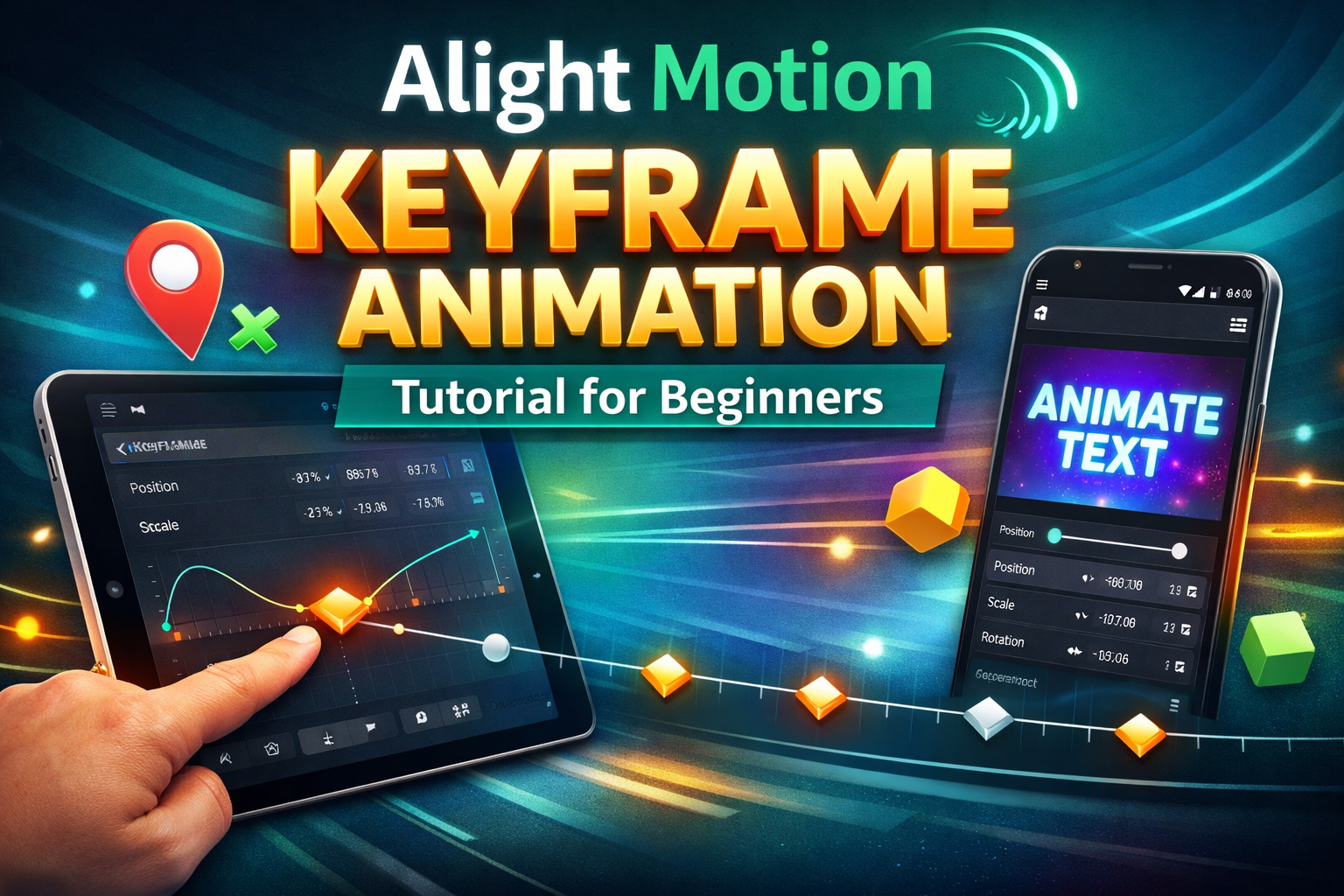
Alight Motion Keyframe Animation Tutorial for Beginners
Have you ever watched a smooth edit in Alight Motion and wondered how creators make simple text, images, and clips move so perfectly? The answer usually comes down to keyframes. In this alight motion keyframe animation tutorial, you’ll learn how keyframes control movement, timing, scale, position, opacity, and rotation so your edits feel cleaner, smoother, and more professional from the very first project.
What Is Keyframe Animation in Alight Motion?
Keyframe animation in Alight Motion means setting a layer’s position, size, rotation, opacity, or another property at specific points in the timeline. Once you add keyframes, the app automatically creates the smooth transition between those points. This helps you animate text, images, shapes, and effects without adjusting every single frame manually. It is one of the main tools used to create professional-looking motion graphics and video edits in Alight Motion.
Why Keyframes Change Everything
Keyframes matter because they turn static media into living motion. A title can glide in, a photo can zoom gently, and a logo can rotate with purpose. Once you understand how keyframes, motion, and timing work together, your edits stop feeling flat and start feeling intentionally designed.
Getting Your Project Ready the Right Way
Before you touch motion controls, build a clean project. In any alight motion keyframe animation tutorial, setup matters more than beginners expect. Import one video clip, still image, text layer, or shape first. A simple scene helps you understand what changed, why it changed, and how motion behaves over time.
Next, place your asset neatly on the canvas and scrub the playhead through the sequence. Watch where the starting point should sit and where the ending point should land. This early planning saves you from chaotic edits later. Good motion editing often begins with quiet preparation rather than flashy experimentation.
Start With a Small Practice Scene
Choose one object and one clear action. Maybe a title slides upward or an image slowly grows larger. Small exercises teach timing faster than crowded projects do. When your practice scene stays focused, you can study motion frame by frame and build confidence without drowning in unnecessary visual noise.
How to Add Your First Keyframes
The heart of this alight motion keyframe animation tutorial is learning where the first keyframe belongs. Tap the layer you want to animate, move the playhead to the opening frame, and tap the diamond icon beside a property. That first tap stores a value and creates your first controlled motion reference.
Move forward on the timeline and change the selected property. Shift position, increase scale, reduce opacity, or turn rotation slightly. The app now connects both points and creates motion between them. This is the simplest way to add keyframes in Alight Motion and understand how animation begins.
One Keyframe Is Not Enough
A single keyframe only stores one state. It does not create visible motion on its own. You need contrast between at least two points. Once you see that relationship, the whole system becomes easier. Motion is simply the result of values changing across time in a controlled and readable sequence.
Understanding Position and Scale Without Guesswork
Most beginners start with Alight Motion position animation because it feels intuitive. You move an object from one place to another and the eye instantly understands the result. That makes alight motion keyframe animation tutorial practice easier. You can test motion clearly without getting distracted by complicated settings or heavy effects.
Then comes Alight Motion scale animation, which controls size over time. Scale can create a gentle push-in, a dramatic punch zoom, or a subtle breathing effect. Used carefully, it adds energy without chaos. Combined with position, it helps animate layers in Alight Motion in a way that feels guided rather than random.
Use Distance to Control Emotion
Small movement feels calm. Large movement feels dramatic. That simple rule helps you decide how far an object should travel or grow. When the distance matches the mood of the scene, motion feels believable. When it does not, the animation can feel noisy even if the technical setup is correct.
Using Rotation and Opacity for Better Depth
A strong alight motion keyframe animation tutorial also teaches rotation animation in Alight Motion and opacity animation in Alight Motion. Rotation can add elegance, tension, or playful energy depending on speed and angle. Opacity is quieter, yet it is powerful for fades, reveals, and clean transitions between visual layers.
These properties become far more useful when paired with position or scale. A title that fades while rising feels more polished than a title that only appears. That is why good editors blend properties instead of relying on one. Layered motion creates richer visual flow and a stronger sense of direction.
Subtle Motion Often Looks More Premium
New editors sometimes push rotation too far or fade elements too suddenly. That usually makes the scene feel amateur. Subtle motion tends to feel more expensive and deliberate. A few degrees of turn or a short opacity shift can guide attention beautifully without making the viewer notice the editing trick itself.
How to Make Motion Look Smooth
This part of the alight motion keyframe animation tutorial is where beginners usually level up. Smooth motion is not only about placing points. It is about spacing, speed, and relationship. If keyframes are too close, motion looks twitchy. If they are too far apart, movement can feel sleepy and disconnected.
To create smooth animations in Alight Motion, study how the object travels between each point. Does it drift too quickly at the start? Does it stop too harshly at the end? Those questions matter. Smooth animation feels less like a machine jerk and more like a camera gliding on polished rails.
Timing Is Your Hidden Superpower
Timing changes everything even when the values stay the same. Move a keyframe a little earlier and the motion snaps. Move it later and the scene breathes. That tiny adjustment often matters more than dramatic effects. Editors who understand timing create cleaner work because they control feeling, not just movement.
Easing and the Shape of Motion
Every solid alight motion keyframe animation tutorial should explain easing. Easing changes the speed curve of motion so it does not begin and end at the same pace. Instead of feeling stiff, the object can glide, settle, accelerate, or decelerate. That gives your edit the softness and realism viewers instinctively appreciate.
In motion editing in Alight Motion, easing is where technical control becomes creative style. A fast ease-out can make text feel sharp and modern. A slow ease-in can make a reveal feel elegant. These curves shape the character of motion and make basic movement feel closer to professional video design.
Think in Velocity Instead of Distance
Many beginners only watch where the object goes. Better editors also watch how it gets there. Velocity creates personality. Fast starts feel bold. Soft endings feel refined. Once you begin reading motion this way, you stop animating by accident and start making deliberate editorial choices with more confidence and clarity.
Working With Text, Shapes, and Images
Text is one of the best places to practice how to use keyframes in Alight Motion because the result is easy to judge. A title can slide, fade, scale, or rotate with clean feedback. That makes text perfect for an Alight Motion animation tutorial aimed at readers still building muscle memory.
Shapes are equally useful because they respond neatly to timing changes and layered motion. They help you test shape animation, illustration animation, and simple text animation ideas before you animate more complex footage. Once those basics feel natural, video animation in Alight Motion becomes far easier to manage.
Clean Assets Teach Faster
Messy footage can hide problems. Clean shapes and clear text expose them immediately. You can see bad timing, uneven spacing, or awkward easing without distraction. That is why simple practice scenes work so well. They give you honest visual feedback and help you improve faster than crowded edits usually do.
Copying Motion Without Making It Look Repetitive
Another practical part of an alight motion keyframe animation tutorial is learning to reuse motion. You can copy and paste keyframes Alight Motion to apply the same rhythm to multiple layers. That keeps your sequence cohesive and saves time during longer edits where repeated structure actually supports the style.
Still, copied motion should not stay identical everywhere. If every title moves the same way with the same delay, your sequence starts feeling stale. Change direction, shorten the duration, or soften the easing. That keeps layer animation in Alight Motion consistent while still allowing each element to feel purposeful and distinct.
Repetition Needs Variation
Consistency builds trust in a visual sequence, yet variation keeps it alive. Think of copied motion as a template rather than a final answer. Use it as a base and then adjust timing or distance. Those small refinements prevent your edit from feeling factory-made and help maintain a more human rhythm.
Adding Effects and Transitions With Control
A better alight motion keyframe animation tutorial does not stop at movement alone. It also shows how keyframes affect Alight Motion effects and transitions. Blur, glow, shadow, and distortion can all change over time. That lets the screen evolve naturally instead of snapping from one look to another.
Effects work best when they support the scene rather than compete with it. A slight blur can sell speed. A glow can emphasize a reveal. A transition should connect one visual idea to the next with intention. Good timeline animation in Alight Motion feels woven together, not patched together with flashy tricks.
Let Motion Lead the Transition
The smartest transitions follow existing motion on screen. If an object drifts left, let the next scene enter from that same direction. This creates continuity that viewers feel even when they cannot name it. That subtle alignment is a hallmark of polished editing and stronger creative control throughout the sequence.
Common Mistakes and How to Avoid Them
The final section of this alight motion keyframe animation tutorial is about mistakes that quietly ruin otherwise good edits. Beginners often animate too much at once, ignore playback, or stack effects before the core motion works. Always preview animation early. Fix the basics first and your project will look better instantly.
Another issue appears when editors rush through timing without studying the properties of each layer. Slow down. Watch every change on the timeline. Learn how editing tools, effects, and keyframes interact. That habit turns a beginner keyframe tutorial into real skill and gives you a cleaner path toward professional results.
Practice Short Edits Until Motion Feels Natural
Do not chase complexity too early. Build ten-second scenes and refine them until the movement feels effortless. Short exercises reveal mistakes quickly and train your eye with less frustration. Over time, the app feels less like a puzzle and more like an instrument you can actually play with confidence.
FAQs
How to use keyframes in CapCut?
To use keyframes in CapCut, select your video, image, or text layer on the timeline and move the playhead to the point where you want the animation to start. Tap the keyframe icon to add the first point. Then move the playhead forward and change the size, position, or rotation of the element. CapCut will automatically create motion between those two points.
Where is the keyframe button in Alight Motion on iPad?
In Alight Motion on iPad, the keyframe button usually appears as a small diamond icon next to editable properties like position, scale, rotation, and opacity. First select the layer you want to animate, then open the property controls. Once you choose a property, you’ll see the diamond-shaped keyframe button beside it on the editing panel.
How to use keyframes in Alight Motion?
To use keyframes in Alight Motion, select a layer and move the playhead to the starting point of your animation. Tap the diamond icon beside a property to place the first keyframe. Then move forward on the timeline and change that property. Alight Motion will animate the layer between the two points and create a smooth transition automatically.
Why are Alight Motion keyframes not working?
Alight Motion keyframes may not work if you added only one keyframe instead of two, selected the wrong layer, or placed both keyframes at the same point on the timeline. Sometimes the issue also comes from editing the wrong property or not moving the playhead before making changes. Check that the layer is active and preview the animation after each adjustment.
How to edit keyframes in CapCut PC?
To edit keyframes in CapCut PC, click the clip or element on the timeline and locate the keyframe controls in the editing panel. Move the playhead to an existing keyframe, then adjust the position, scale, rotation, or other settings. You can also move keyframes along the timeline to change timing and make the animation feel smoother or faster.