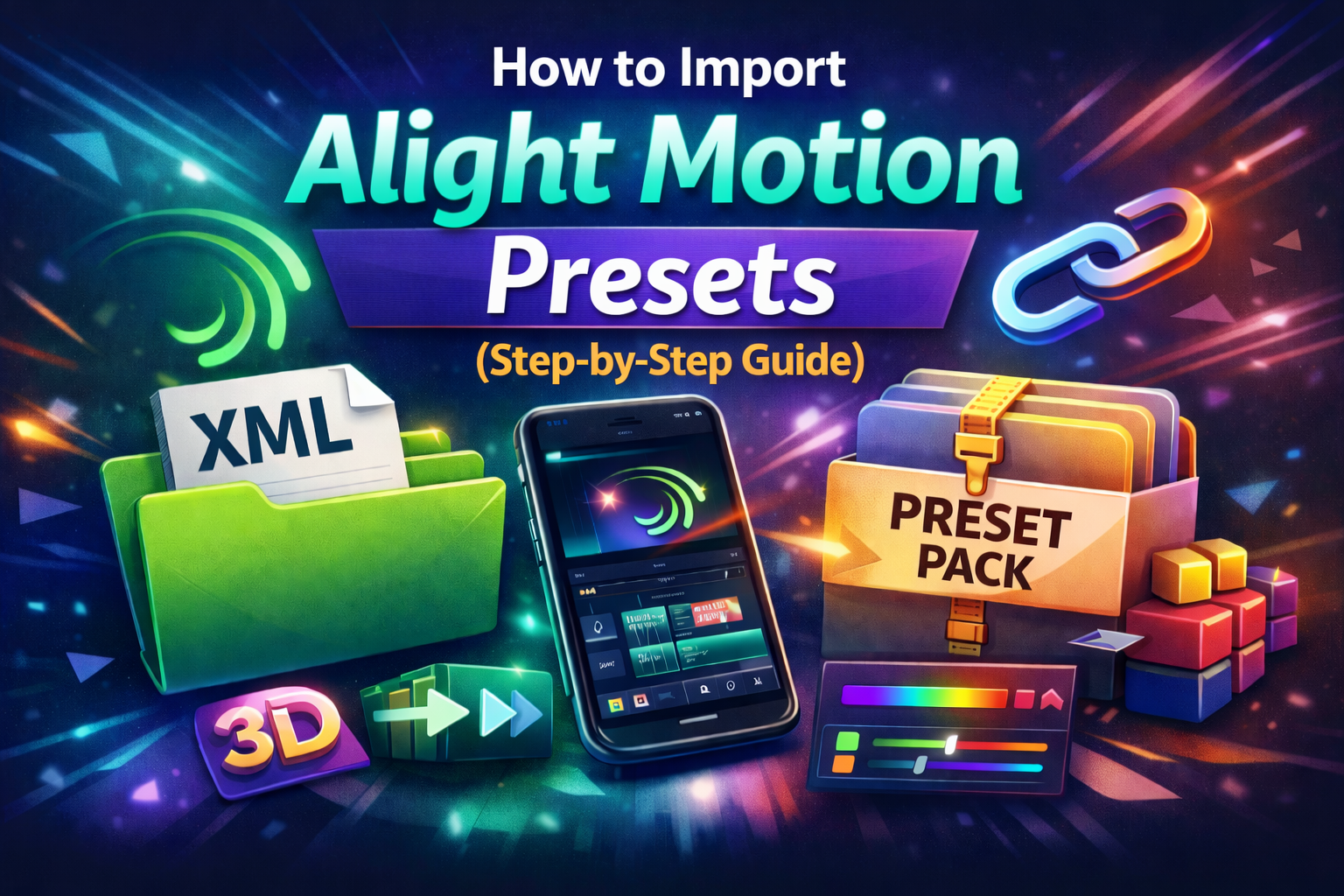
How to Import Alight Motion Presets (Step-by-Step Guide)
If you have spent any time scrolling through Instagram Reels or TikTok, you have probably stopped mid-scroll at a video with impossibly smooth transitions, rich cinematic colors, and eye-catching text animations and wondered how on earth the creator pulled that off on a phone. The secret behind most of those edits is Alight Motion presets.
Alight Motion is widely regarded as one of the most powerful mobile video editing apps available today, offering desktop-level effects and animation tools right from your pocket. Presets take that power a step further by letting you apply professional-grade looks, color grades, and effects to your clips instantly without spending hours tweaking settings manually.
In this complete step-by-step guide, you will learn exactly how to import Alight Motion presets on Android and iOS, which method works best for your situation, how to fix the most common import problems, and where to find the best free alight motion presets online.
What Are Alight Motion Presets?
Before jumping into the import process, it helps to understand what alight motion presets actually are and why so many creators rely on them. An Alight Motion preset is essentially a saved configuration of effects, color grades, animations, or transitions that can be applied to any video project in seconds. Think of it as a creative shortcut instead of building a complex effect from scratch by adjusting keyframes, blending modes, and color curves one by one, a preset packages all of those settings into a single file that you can apply with just a few taps.
Alight Motion presets come in several formats, and knowing the difference between them will save you a lot of confusion. The most common type is the XML preset file, which stores complete project or effect data and is compatible with most versions of the app. Then there are alight motion preset links shareable URLs that open directly inside the app and import the preset automatically. Many creators also distribute alight motion preset packs, which are bundled collections of multiple presets organized around a theme or style.
For Android users, there are also dedicated alight motion preset apps and APKs third-party applications that come pre-loaded with large preset libraries. Finally, some creators share what is called an alight motion preset base, which is a foundational template designed to be customized rather than used as-is.
In terms of style, the most sought-after categories include alight motion coloring presets for cinematic color grading, alight motion transitions presets for seamless clip-to-clip movement, and alight motion 3D text presets for dynamic, dimensional title animations. Each of these categories has a thriving community of creators constantly producing and sharing new designs, many of them completely free.
What You Need Before You Start
Getting the import process right starts with a bit of preparation. First, make sure you have the latest version of the Alight Motion app installed on your Android or iOS device. Using an outdated version is one of the most common reasons preset imports fail or look incorrect after applying. Second, identify the format of your preset is it an XML file, a link, or part of a preset app?
This will determine which import method you use. Third, if you are working with a downloaded file, know exactly where it saved on your device, as this will save you frustration when the app asks you to locate it. Finally, make sure you have enough storage space available, since large preset packs can take up considerable room.
One important thing to note before you begin: some advanced preset features in Alight Motion require a paid subscription. However, the vast majority of free alight motion presets you will find shared by creators online work perfectly on the free version of the app, so you do not need to upgrade just to get started.
3 Ways to Import Alight Motion Presets
There are three primary methods for importing presets into Alight Motion. The right one for you depends entirely on what type of preset you have.
Method 1 — Import an Alight Motion Preset XML File
The XML file method is by far the most widely used approach and works for the overwhelming majority of alight motion presets shared online. To get started, download the XML preset file to your device on Android it will typically land in your Downloads folder, while on iPhone it will appear in the Files app under On My iPhone. Once the file is downloaded, open Alight Motion and either create a new project or open an existing one. Tap on the layer you want to apply the preset to, then open the Effects or Animation panel. Depending on your app version, look for an Import option represented by a folder icon or accessible through a three-dot menu. Tap Import from File, navigate to the location where your XML file is saved, and select it. The preset will be applied to your project immediately.
A quick but important note: if the file you downloaded has a .txt or .zip extension rather than .xml, you will need to either rename it to .xml or unzip it first before the app can read it. This is a very common issue for beginners and is almost always the reason a file fails to import on the first try.
Method 2 — Import via an Alight Motion Preset Link
The preset link method is arguably the most convenient way to import alight motion presets, and it is the preferred approach for many alight motion presets Instagram creators who share their work directly in their Stories or bio links. An alight motion preset link is a special URL usually beginning with alightmotion:// or formatted as a short redirect link that is designed to open directly inside the app. To use it, simply tap the link on your phone. If Alight Motion is installed, the app will open automatically and display an import prompt. Tap Accept or Import, and the preset will be saved to your Alight Motion library, where it is ready to apply to any future project. This method requires no file management at all, making it a great option for beginners and for anyone who wants to import alight motion presets without sign in complications. Do note, however, that some link-based presets will ask you to log in to your Alight Motion account before completing the import.
Method 3 — Import via a Preset App or APK
For Android users especially, a dedicated alight motion preset app or alight motion preset APK can be a game-changer. These third-party applications come pre-loaded with large libraries of organized presets often categorized by style, color, effect type, and more. To use this method, download a trusted preset app from a reputable creator or community source, open it, browse the available presets, and tap the Import or Send to Alight Motion button on whichever preset you want. The app will redirect you to Alight Motion, where you will be prompted to accept and save the preset. It is worth emphasizing that you should be cautious about which APK files you download stick to well-known sources and creator communities to avoid security risks on your device.
iOS vs Android — Key Differences to Know
While the core import process is nearly identical on both platforms, there are a handful of differences worth being aware of. On Android, downloaded files are easy to locate in the Downloads folder through any file manager, and APK sideloading is fully supported, meaning you have access to a wider range of preset apps. Preset links also tend to open more seamlessly on Android when Alight Motion is set as the default handler for those URLs you can configure this by going to Settings → Apps → Alight Motion → Open by Default.
On iOS, downloaded files are stored inside the Files app under On My iPhone, which can take some getting used to if you are new to iPhone. APK files are not supported at all on iOS, so iPhone users are limited to App Store applications. Preset links on iPhone will open in Safari first and then redirect to the Alight Motion app, which is a slightly less seamless experience but works reliably once the app is installed. Regardless of your platform, always make sure your app is updated to the latest version before attempting any import.
Alight Motion Preset Import Problems — Solved
Even with the right method, you may run into issues. The good news is that most alight motion preset import problems have simple solutions. The most common issue is an “Unable to Import File” error, which almost always comes down to the file format. Double-check that your file has a .xml extension and is not corrupted re-downloading from the original source usually fixes this immediately.
If a preset link is not opening Alight Motion on your device, the first thing to check is whether the app is installed and up to date. On Android, you may need to manually set Alight Motion as the default app for those link types through your device settings. If the link still will not open, try copying it and pasting it directly into your browser, which will trigger the redirect manually.
Sometimes a preset imports successfully but does not look the way you expected the colors seem off, animations are out of sync, or certain effects are missing. This is typically a version mismatch issue, where the preset was created on a different version of Alight Motion than the one you are using. Always check the creator’s notes for version requirements and update your app if needed. Also confirm that your video’s resolution and aspect ratio match what the preset was designed for.
Finally, if importing requires you to sign in and you would prefer not to create an account, simply switch to the XML file import method this approach works without authentication in most cases and gives you the same result without any login requirements.
Where to Find the Best Free Alight Motion Presets
One of the best things about the Alight Motion community is how generously creators share their work. Instagram is one of the richest sources searching the hashtag #alightmotionpresets will surface hundreds of creators posting free preset links in their bios and Stories daily. YouTube is another goldmine, where many editors publish full tutorial videos with complete alight motion preset pack downloads linked in the description.
Telegram has become especially popular for preset sharing, with dedicated groups regularly dropping large packs of coloring presets, transition presets, and XML files at no cost. Reddit’s r/AlightMotion community is also worth bookmarking, as members frequently share presets and help troubleshoot import issues. For a more organized browsing experience, several fan-run preset websites catalog alight motion preset download links by category, making it easy to find exactly the style you are looking for.
Popular Preset Types Worth Exploring
With so many options available, it can be hard to know where to start. Alight Motion coloring presets are a great entry point they let you apply a complete cinematic color grade in one tap, transforming the mood of your footage instantly with looks ranging from moody and dark to warm and vintage.
Alight Motion transitions presets are equally popular and cover everything from smooth zoom transitions to glitch effects and stylish wipes that make your cuts feel intentional and polished. If you want to take your text overlays to the next level, alight motion 3D text presets download packs are widely available and add real depth and dimension to titles and captions.
For users who want more creative control, starting with an alight motion preset base is a smart move these foundational templates give you a working structure to build on and customize rather than starting from a blank canvas.
Pro Tips for Getting the Most Out of Preset Packs
To make the most of your alight motion presets, keep a few things in mind. Always organize your downloaded XML files into clearly labeled folders on your device so you can re-import them easily later. Do not hesitate to modify a preset after importing changing colors, adjusting timing, or tweaking opacity can transform a generic preset into something that feels uniquely yours. Stay active in Alight Motion communities on Instagram and Telegram, where new free presets drop regularly and creators often share exclusive packs with their followers. And always be cautious with APK downloads your device security is not worth the risk of downloading from an unverified source when there are plenty of trusted communities offering the same presets safely.
Final Thoughts
Alight Motion presets are one of the fastest ways to close the gap between beginner edits and professional-looking content. Once you understand the three import methods XML file, preset link, and preset app the process becomes second nature, and you will find yourself experimenting with new presets and styles constantly. From rich cinematic coloring and silky transitions to bold 3D text effects, the range of what is available for free is genuinely impressive. Start with one method that fits your current preset format, get comfortable with the import flow, and then explore the broader world of alight motion preset packs that the community has to offer. Your next viral edit might be just one preset away.


Tongitsstar? Ah, that’s my go-to spot for a quick round of Tongits. Easy to navigate and the games run smoothly. Been winning small pots here and there! Check it out at tongitsstar. Good luck!
Jilino1livelogin is where it’s at for live dealer games. Gets you right in the action! Quick setup too. jilino1livelogin
Just stumbled upon jj99game. Site’s clean and easy to use. They got a decent variety of games to play. Anyone else tried it? Give jj99game a try and tell me what you think!
Yo, 555win6 is legit! Been playing there for ages, good selection of games and payouts are pretty quick. Check it out 555win6, you might just get lucky!
VIPPHclub, huh? Gotta say, I was skeptical, but the bonuses actually seem legit. Plus, the game selection is on point. Signed up and haven’t had any issues. Give it a go! vipphclub
7e77bd, another one popping up. They’ve got a solid range of table games. Kinda old-school which some people dig. worth a look if you like those classics. 7e77bd
Toggled over to try the slot collection and I am properly impressed by the variety and how smoothly everything loads on mobile. The graphics are crisp and the bonus rounds are actually worth chasing. A bright little gem for anyone after quality online play. vivatogelslot
You really brought a spark into my weekends that I was missing. I love how this platform treats me like family and celebrates every little victory. It feels like hanging out with old buddies every time I log in. m23win7
Coming from a sports betting background I can tell you this page handles everything with real transparency. The odds stay competitive and the local payment methods work flawlessly on my end. I finally found a spot that respects player comfort while keeping the action exciting. vamosdominopro
Finally found a site that doesnt lag during peak hours. The login is quick and everything just works perfectly. sanur999login
Best experience I have had in a long time. The bonuses are generous and the customer support is actually helpful. I am loving the vibes here. Just go to win96jililogin and see for yourself.
Finally a site that actually pays out without a million questions. The experience has been seamless from start to finish. Visit pkok777bet
I love the bonus offers they have for new players. It gave me a great head start. Really happy I found bdl789.
The efficiency of this site is impressive. No lags and the registration process was a breeze. Very happy with bdtask71
Really impressed with the graphics and the overall gameplay. It is super addictive in a good way. I am spending way too much time on phnustargameonline!
I love the daily rewards system here. It keeps the gameplay exciting even on days I don’t bet big. phwinplus is my new favorite go-to site.
I love how intuitive the navigation is. Even for a beginner, it is very easy to get around and start playing. Great vibes all around at vnxn88com.
Honestly one of the best platforms I have used lately. The registration was a breeze and I started playing in minutes. Visit 9777bdgame now.
Solid platform with a great selection of games. The registration was a breeze and I started playing in minutes. Check betmgmcasino
Really impressed with the loading speed and the overall design. It is very intuitive even for beginners. My go-to is pkkk77
Super impressed with the fairness of the games here. I feel like I actually have a chance to win. Really happy with idgg189 so far.
Solid platform with a great community. Everything feels very professional and secure at krphwin.
Great variety of tables and slots. I’ve won a decent amount here and the process of getting my money out was seamless. You can’t go wrong with 200jilicasinologin.
Finally found a smooth way to get the app installed. The interface is clean and the loading speed is impressive. Definitely worth a try for anyone looking for a reliable platform. Check out 4999betappdownloadapk
Everything feels very professional here. The customer support responded to my query in minutes. Solid choice at in007bet
Best Jili experience I have had in a while. The bonuses are generous and the loading speed is impressive. Highly recommend ph991jili to everyone looking for big wins.
Feeling lucky today! The bonuses here are actually generous and easy to claim. I am definitely staying with luckybet7game for a long time.
Finally found a site with a reliable login system and great customer support. Everything feels secure and professional. Just go to modal777login and start playing.
The app is surprisingly lightweight and doesn’t drain my battery. I love how easy it is to navigate through the different sections. A must-have for mobile users. Try bossjiliapp.
A very professional setup with a huge selection of tables. I love the atmosphere and the transparency of the games. I will definitely keep coming back to krevocasino.
Really loving the vibe here. Everything feels very intuitive and the bonuses are actually helpful for new players. Highly recommend vnnohu1
The customer support team is very helpful and answered all my questions in minutes. It is rare to find such good service. Thanks bdkk77
Great variety of tables and slots. I’ve won a decent amount here and the process of getting my money out was seamless. You can’t go wrong with 200jilicasinologin.
I’ve tried a few sites lately but this one really stands out. The interface is smooth and the payouts feel fair. Definitely checking out kayarayaslot more often!
Found this site through a friend and I am glad I did. The rewards system is very motivating. Give phjilibbcom a try!
Best slot site I have encountered in a while. The hit rate seems much better here than on other platforms. Give idslot97 a try!
Really impressed with the variety of slots here. I just hit a decent win and the withdrawal was surprisingly quick. Huge thanks to 65jilicasinologin!
Finally found a site that doesn’t lag during peak hours. The login process is seamless and the game variety is impressive. Highly recommended for slot lovers. batikslotlogin
The game variety here is insane! I love how smooth the interface is on mobile. Highly recommend wwwcasinopluscomph for anyone looking for a thrill.
The interface is so smooth and I had no trouble accessing my account. Definitely the best way to play! Check it out at jilibossloginapp
The bonuses here are actually worth it. I was skeptical at first but the gameplay is addictive and the customer support is quite responsive. Just visit ph50jili to start winning.
I’ve been playing here for a few weeks and the payouts are actually legit. Really smooth experience so far. Check out krcasinowinoui for a great time!
Logging in is a breeze and the account verification was surprisingly quick. I really appreciate the efficiency of lotusdewalogin.
Finally found a site that doesn’t lag during peak hours. The interface is smooth and the login process is super quick. Definitely my new go-to spot! Check it out at jili1985casinologin
Finally found a platform that actually treats its players right. The bonuses are generous and the customer service is very helpful. Give perabetcasino a try!
I’ve tried a few sites recently but this one really stands out. The loading speed is great and the games are super smooth. Definitely check out idtopslot88 if you want a hassle-free experience.
The login process is seamless and the account management is very secure. I feel safe playing here and the rewards are generous. Visit studiobet78login today.
I’ve been playing here for a few weeks and the payout is surprisingly fast. Definitely one of the smoothest experiences I’ve had lately. Check out krphlwin for a great time!
Found this site through a friend and it did not disappoint. The customer support is very responsive and helpful. Keep it up phjiliuu!
Total game changer! The variety of games here is insane and the graphics are stunning. I spend way too much time on iny1games these days but it is totally worth it.
The mobile app is a game changer. I can play anywhere without any lag or crashing. Highly recommend downloading bcgameapp for a better experience.
The jackpot hits are real here! I was skeptical at first but after a few wins I am totally convinced. phjackpotwin is the real deal.
Great vibes and an even better selection of betting options. It is rare to find a site this stable and responsive. Keep it up 45tbet!
Finally found a platform that actually pays out fast. The interface is super smooth and the games are addictive. Highly recommend jilibet888app for anyone looking for a legit experience.
The app is super lightweight and works perfectly on my phone. No more crashing when I am in the middle of a big win. This is the way to go. Download k77777app today.
I have tried many sites but this one stands out for its reliability. Fast withdrawals and great odds. Trust kr789win
Best experience I’ve had this month. The community is great and the wins are consistent. You can’t go wrong with jljl555com for your daily gaming.
Finally found a reliable way to access my account. The login process is seamless and the support team is very helpful. Highly recommend winbox88login.
I’ve been looking for a smooth app experience and this one delivers. The loading speed is impressive and the interface is very intuitive. Highly recommend 5777betloginapp for anyone who hates lagging.
I’ve tried a few sites lately but this one is surprisingly smooth. The games load fast and the interface is very user friendly. Definitely recommend checking out pkj2game for a great time.
I was looking for a reliable place to play and this is it. Very secure and the bonuses are actually fair. Check out 17777betlogin
The login process is secure and fast. I never have issues accessing my account and the updates are frequent. jili4login is the way to go.
Best spot for football betting. The odds are competitive and the live updates are spot on. Always go with idautobola for sports betting.
The customer support is actually helpful which is rare these days. I had a small issue with my deposit and they sorted it in minutes. Give au8802com a go.
Really loving the bonuses they offer for new members. It feels like they actually value the players here. br55ubet is definitely my new favorite spot.
Solid platform with a very responsive support team. I had a question about my deposit and they sorted it out in minutes. krrkrk3 is the real deal.
The customer support team is very helpful and answered all my questions in minutes. It is rare to find such good service. Thanks bdkk77
The graphics are top-notch and the winning streaks here are real. I’m really impressed with the system. Check out krwin35kr today.
I’ve tried a few sites lately but this one really stands out. The interface is smooth and the payouts are surprisingly fast. Definitely checking out bdgv88 again tonight!
Found this site through a friend and it is actually legit. The game variety is impressive and it runs great on my mobile. Give phpunph a try today.
Solid experience so far. The withdrawal process was surprisingly fast and everything was transparent. Glad I found vnxn88win.
I have tried a few platforms lately but this one really stands out. The interface is smooth and the payouts are surprisingly fast. Definitely worth a try for anyone looking for a reliable spot. Check out kr855win for a great experience.
Found this gem by accident and now I play here every weekend. The game library keeps getting better and the live dealer tables feel so real. Customer service replies within minutes and always with a smile even during busy hours. Highly recommend giving it a try if you enjoy fair play. ransjitu1
Really impressed with the variety of games available here. Everything loads quickly and the graphics are top notch. Give phqqph a try, you won’t regret it.
Best experience I have had in a long time. The bonuses are generous and the customer support is actually helpful. I am loving the vibes here. Just go to win96jililogin and see for yourself.
I finally found a platform that actually works without any lag. The registration process was super smooth and I started playing in minutes. Definitely check out 555tayaregister if you want a hassle-free experience.
The graphics are top-notch and the winning streaks here are real. I’m really impressed with the system. Check out krwin35kr today.
Really impressed with the fast loading speed here. Everything is smooth and the interface is very intuitive for new players. Check out mpo303login for a great experience!
This platform is a game changer. The customer support is helpful and the rewards are very generous. I am sticking with brplataforma7ff for a long time.
I’ve tried a few apps lately but this one is definitely the smoothest. The interface is super easy to navigate and the payouts are quick. Highly recommend phgperyaapp for anyone looking for some real excitement.
I’ve been trying a few platforms lately and this one really stands out. The interface is super smooth and the payouts are fast. Definitely recommend checking out bdv444 if you want a reliable experience.
The bonuses here are legit and not just bait. Really happy I switched to ph55bmw5 for my daily gaming.
Solid experience so far. The games are diverse and the loading times are very short. Big thumbs up for pkbv9999.
Solid performance and very secure. I feel comfortable depositing my funds here knowing everything is handled professionally. Shoutout to 18jililogin
Honestly the best gaming experience I have had in a while. The bonuses are generous and the customer support team is actually helpful. Highly recommended for all players. Visit 88korwin
Everything feels very intuitive here. I didn’t even need a tutorial to get started. Simple and effective gaming at betakibet
I’ve been playing here for a few weeks now and the interface is super smooth. Really enjoying the variety of games available. Check out vngamef188 for a great experience!
The login process is seamless and the security makes me feel safe. I had a great run last night and the customer support was very helpful. Give ph55bmwapploginakp a shot!
I’ve been looking for a reliable spot like this for a while. The interface is super smooth and the experience is just top-notch. Highly recommend phsayaph to everyone!
Finally found a site that doesn’t crash during peak hours. The bonuses are actually fair and easy to claim at xin883.
The payouts are fair and the games are top notch. I have told all my friends to join pkpion777
I’ve been using this app for a few weeks now and the interface is super smooth. Definitely one of the best experiences I’ve had lately. Check out 8999bdapp for more details.
I’ve been playing here for a week and the loading speed is impressive. Super smooth experience so far! Check it out at 58jilicomlogin
The interface is clean and every game runs without any lag on my device. I really enjoy the daily promotions and the staff are always ready to help with account questions. Cashouts are super fast and I never had to wait long for my funds. A trustworthy option for regular play. kawbetonlinecasino
I’ve been looking for a reliable spot to play and this one really hits the mark. The interface is smooth and the payouts are surprisingly fast. Definitely my new go-to place for some action! brsorte26bet
Finally found a site where the bonuses actually feel fair. Had a great run on the slots last night! Definitely checking out ug234slot again this weekend.
I’ve been looking for a reliable way to access my account and this site makes it so simple. The login process is smooth and I didn’t hit any glitches. Highly recommend popi99login for everyone.
Just hit a nice little jackpot here! The registration process was super easy and took like two minutes. br777win97 is legit.
I’ve been playing here for a few weeks now and the payout speed is actually impressive. Highly recommend 777ccgame for anyone looking for a smooth experience.
Honestly, the variety of games here is impressive. I spent the whole weekend exploring and didn’t get bored once. Great experience overall 55llcombet
Signing up was a breeze! I was able to create my account in under two minutes without any hassle. The onboarding process is very professional. Head over to 11icsignup.
Clean design and very easy to navigate. I appreciate how they keep things simple without too much clutter. Highly recommend vnt19
I’ve been playing here for a few weeks now and the payouts are surprisingly fast. Definitely one of the smoothest experiences I’ve had. Check out 777abet
Really loving the interface here. The loading speed is fast and the games are super smooth. Definitely my new favorite spot to hang out. Check out dreamjili2login
Smooth gameplay and no crashes at all. I appreciate the stability of the server even during peak hours. Keep up the good work! dtg288login
I was skeptical at first but this site really delivers. The game variety is amazing and I had no issues with my first withdrawal. Love krawin68 so far!
I appreciate the transparency and the quick withdrawal process. It’s hard to find a site this honest these days. Great job phwenph!
I’ve tried a few sites this month but this one really stands out. The games load fast and the payouts are fair. Definitely my new favorite spot. Check out adam77slot for a great experience!
Really impressed with the rewards here. It feels like they actually care about the players. Highly recommend vnjw88 to anyone looking for a fair game.
Finally found a login page that doesn’t glitch out. The process is straightforward and it gets me straight to the games. Great job on okbetcomlogin.
Every time I log in I find something new and exciting to play. The loyalty rewards keep me coming back for more. I always suggest winstoriacasino to my friends.
Very stable connection and the registration was a breeze. I appreciate how they keep things simple and efficient. Big thumbs up for jili178login.
I’ve been looking for a reliable place to play and this site really delivers. The interface is smooth and the payouts are fair. Definitely checking out pk97gameonline more often!
The app version is so much more convenient than the browser. Everything is just a tap away and it runs perfectly on my phone. Love 89batapp
Great selection of games and the promotions are actually worth claiming. I had a great time exploring idmabok88 today.
Super smooth gameplay and the graphics are amazing. It feels very professional and safe. I am really enjoying my time on this platform. jililovelogin
Finally a site that doesn’t crash during peak hours. The login process is seamless and getting started was a breeze at okbk8login
Logging in is a breeze and the account management is very straightforward. No complicated steps, just pure gaming. I really appreciate the efficiency of sz777asialogin.
Super friendly community and a very polished website. I appreciate how they handle the promotions. It is a great place to relax and win some cash. Try beekingph
The affiliate program is actually transparent and rewarding. It’s a great way to earn while sharing a platform that actually works r7betsafiliados
Super easy to navigate and the registration process was a breeze. I love how quickly I can get into the action without any annoying delays. phyyph
Really impressed with the user interface of this app. It makes playing so much more fun. Check out db89app for the best features.
Top quality service and a very clean layout. I feel safe using this platform and the rewards are actually fair. Big thumbs up for idsenopati4.
Super smooth gameplay and the graphics are amazing. It feels very professional and safe. I am really enjoying my time on this platform. jililovelogin
The app installation was a breeze and the performance is rock solid. It is so much better than playing in a browser. Get the rpvip4apk now!
I’ve been trying a few different sites lately and this one really stands out. The games load fast and the payouts are legit. Definitely my new favorite spot for spinning pk44slots.
Signing up was a breeze! I was able to create my account in under two minutes without any hassle. The onboarding process is very professional. Head over to 11icsignup.
I’ve been looking for a reliable place to play and this site really delivers. The interface is smooth and the payouts are fair. Definitely checking out pk97gameonline more often!
Just hit a decent win here and the withdrawal was processed faster than I expected. The variety of games is impressive. Give luky55game a shot if you want a fair platform.
I love the variety of games available on this site. There is always something new to try and the bonuses are actually fair. Visit vnwen88
Really impressed with the loading speed and the overall vibe of the site. It makes gaming so much more enjoyable. Give bdab777 a shot if you want a reliable site.
Great to see a platform that caters so well to our local needs. The payment methods are convenient and the odds are very competitive. Keep it up. Join tk444bangladesh
The mobile app is a game changer. I can play anywhere without any lag or crashing. Highly recommend downloading bcgameapp for a better experience.
Top notch gaming experience! The variety of slots is amazing and I love the daily bonuses they provide. Highly recommend checking out bdbt777.
The variety of betting options here is insane. I can find everything I need in one place. Best choice is betnacionaloficial.
Solid experience so far. The games are diverse and the loading times are very short. Big thumbs up for pkbv9999.
The slot variety here is insane. I love how the games load quickly without any glitches. Definitely my new go-to place for some fun spins at brasil777slots.
Solid gaming experience and the promotions are always fresh. If you are looking for a steady place to play then phxxphcom is it.
I really appreciate the transparency of this site. Everything is clear and the game options are diverse. Really enjoying my time here. vn32vin1
Love how easy it is to navigate the site on my mobile. Everything loads instantly. Check out phjiliphplay for a seamless experience.
The winning odds here feel much better than other platforms. It is a total game changer. Try phluxwinph today.
The winning streaks I’ve had here are insane. It feels like the RNG is actually fair for once. Cheers to krwinna for the awesome vibes.
Really impressed with the betting odds on this platform. It feels fair and the updates are instant. I’m sticking with br3355bet46 from now on.
Super intuitive design and the loading times are barely there. It makes the whole experience so much more enjoyable. vnzoo88 is killing it right now.
The game variety is insane! I spent the whole weekend exploring different titles and I am hooked. Give br777games a try if you love gaming.
Best betting app I have used this year. The updates are frequent and the new games are always exciting. Great job on the development side! br355betapp
Clean design and very easy to navigate. I didn’t spend much time searching for my favorite games. 5win5com knows exactly what players want.
Top tier service and very reliable. I feel safe using this platform and the withdrawals are handled very quickly. idpamanempire
Just stumbled upon this site and the graphics are amazing. It feels very polished and the community is quite friendly. Go check inwr777gamecom right now.
Everything is so intuitive here. Even my friends who aren’t tech savvy found it easy to navigate. Total win with phtara7777
Super easy registration process. I was able to start playing in under two minutes. Great job by the c333plataforma team.
Login is super quick and I love the bonuses they offer for new users. It makes the whole gaming session much more exciting. Check out winph55loginapp if you want some real action.
Clean design and very easy to navigate. I appreciate how they keep things simple without too much clutter. Highly recommend vnt19
Best platform I have used in the Philippines so far. The local support is helpful and the games run perfectly on my phone. phj77game
Finally an app that does not crash every five minutes. The login process is seamless and the graphics are top notch. Love how convenient it is to play on the go via evojililoginapp.
Finally found a platform that doesn’t lag during big wins. The community here is awesome too. Check out pr88game.
The promotions here are top notch and they actually reward loyal players. I am having a blast with the current events on brasino777br.
Finally found a site that doesn’t lag during peak hours. The customer support is also very responsive and helpful. Great experience with brbetamo so far.
Okaybet’s the place if you’re looking for a chill spot. Nothing too crazy, just good options and easy payouts. My honest thoughts on okaybet.
Fast deposits and even faster withdrawals. That is all I really care about and this site delivers. br6733aa is my new go-to site.
Really impressed with the stability of the site. No lags during big wins which is a huge plus for me. br2uuu88 is now my go-to place for daily gaming.
The VIP rewards here are actually worth it. I felt like a high roller from the moment I signed up. Check out 42vipphcasino for a premium experience.
The registration process was a breeze and I was playing in minutes. It’s a very user-friendly platform. Check out phctaya for some great action.
Clean layout and very transparent rules. It is hard to find a place this honest these days. I highly suggest bdck444pro for everyone.
No more hassle with account access! The login page is stable and works perfectly on my mobile. Cheers to 8jilibetlogin.
This is exactly what I was looking for. The promos are generous and the gameplay is genuinely exciting. My new favorite is 77pinas08
The slot variety here is insane. I hit a decent win on my first try and the withdrawal process was super quick. Highly recommend it guys! kratonbetslot
The community here is great and the rewards keep me coming back. It is easily one of the most reliable spots online. Visit ph90jiliclub
If you love high-energy gameplay and quick results, you gotta try this. The graphics are sharp and the luck is on my side here. Love pkc999game.
Solid platform with a very user friendly layout. I appreciate how easy it is to manage my funds. idnaga169 is definitely my new go to site.
Finally found a place where the payouts are fast and no hassle. The variety of games is insane and I love the vibe. Check out f444casino if you want a great experience.
The login process is quick and the security feels solid. I love the overall aesthetic of the site. Keep up the great work phskycasinologinph!
Great platform with a very professional layout. The transparency in their rules makes me trust them more than other sites. phwinphcom is top notch.
The slot variety here is insane. I hit a decent jackpot on rajamaniaslot yesterday and the withdrawal was a breeze!
The login process is quick and the security feels solid. I appreciate how straightforward everything is without too much clutter. Glad I found 11ccbetlogin.
Super smooth app and very intuitive navigation. I can spend hours on phrubyapp without any glitches. Five stars from me!
Solid platform with no lag during peak hours. I love how straightforward the registration process is. I’m sticking with pk988wan from now on.
Really loving the interface here. Everything is easy to navigate and the bonuses are actually fair. Highly recommend vnxs666 for anyone looking for some action.
Love the variety of games available here. Just had a massive win today thanks to phpjililogin, feeling lucky!
Best platform I have found so far in the Philippines. The games are fair and the interface is very user-friendly. Highly recommend phtopwinph
Finally found a site that doesn’t crash every five minutes. The interface is super user-friendly and the payouts feel fair. Highly recommend giving 65jililogin a try if you are into online gaming.
The slot graphics are stunning and the hits are frequent. It’s my new favorite spot to relax. Visit pkrumislotsgame now.
I’ve been trying a few different sites lately and this one really stands out. The interface is smooth and the payouts are fair. Definitely giving kcwin33 a go for my nightly sessions.
This platform is a game changer. The customer support is helpful and the rewards are very generous. I am sticking with brplataforma7ff for a long time.
Honestly one of the smoothest apps I have tried lately. Fast payouts and the interface is very friendly for beginners. Definitely check out phtg7776 if you want a fair game.
I had some trouble logging in at first but once I got it sorted the gameplay is top notch. Fast loading times at pleypixlogin.
I’ve tried a few sites lately and this one really stands out. The interface is smooth and the payouts are surprisingly fast. Definitely my new go-to spot! ph777kph
Quick access and easy login. I appreciate how stable the platform is even during peak hours. Cheers! pk939gamelogin
Everything feels very intuitive here. I didn’t even need a tutorial to get started. Simple and effective gaming at betakibet
The login process is super quick and the security feels solid. I appreciate how straightforward everything is here. I’ll be spending more time on wim88login for sure.
The app version is just fantastic. I can play wherever I go and the graphics are stunning. If you love mobile gaming, 57winapp is the way to go.
I’ve tried a few platforms recently but this one is surprisingly smooth. The interface is intuitive and the payouts are fast. Definitely recommend checking out vnggk88 if you are looking for a reliable spot.
The registration process was a breeze and I was playing in minutes. It’s a very user-friendly platform. Check out phctaya for some great action.
Was looking for a stable mirror site and this one is perfect. No crashes and very secure. I feel safe depositing my funds here. aa888link
I was skeptical at first but after a week of play I can say this is a legit platform. Withdrawals are processed without any hassle. Cheers to 09tr88!
Great bonuses for new members and the customer support is very responsive. Check out 888starzlogin if you want a reliable site.
I’ve been trying a few different sites lately and this one really stands out. The payouts are fast and the interface is super smooth. Definitely recommend checking out br55cbet if you want a reliable spot.
The graphics are great and the gameplay is very exciting. Definitely one of the best platforms out there phtaya7774.
I’ve been trying a few different sites lately and this one really stands out. The interface is smooth and the payouts are fair. Definitely giving kcwin33 a go for my nightly sessions.
If you are looking for big wins and a fair game, this is the place to be. Give pk777xz a try!
I was skeptical at first but after a few wins I am totally sold. The transparency here is great. Check out br56w for a top notch experience.